Request a License Key
As part of activating fastProjectAI (fastProjectAI & fastDecisionAI), you need to request a license key
When received, please save this license key, as it can be used again if you change computers
Now, start fastProjectAI
If fastProjectAI starts on the “Start screen”, double-click Blank project to start a new project
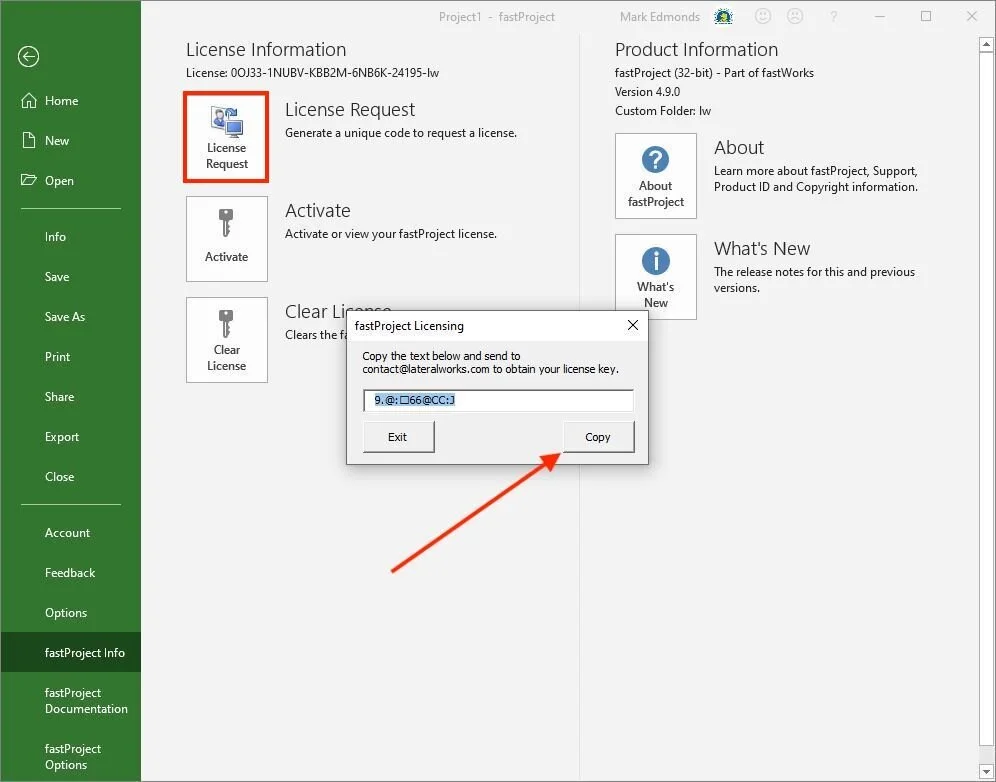
Click File > fastProjectAI Info (see screen below). NOTE: if you do not see fastProjectAI Info, it may mean the Global.mpt file was not installed correctly. In this case, do the following:
Exit fastProjectAI/MS Project (if open)
Open a File Explorer window and locate c:\Program Files\fastProjectAI\System and copy the Global.mpt file
Open another File Explorer window and locate c:\Users\<username>\AppData\Roaming\Microsoft\MS Project\16\en-US
If AppData is not visible, File Explorer > View > Show > Hidden Items
Paste the Global.mpt file copied earlier to this folder (ok to replace)
Start fastProjectAI > start a blank project > File > fastProjectAI Info
Click License Request to generate a unique code
Use the Copy Button to copy and then send the code to contact@lateralworks.com
Activate fastProjectAI
On receipt of your license key, open fastProjectAI
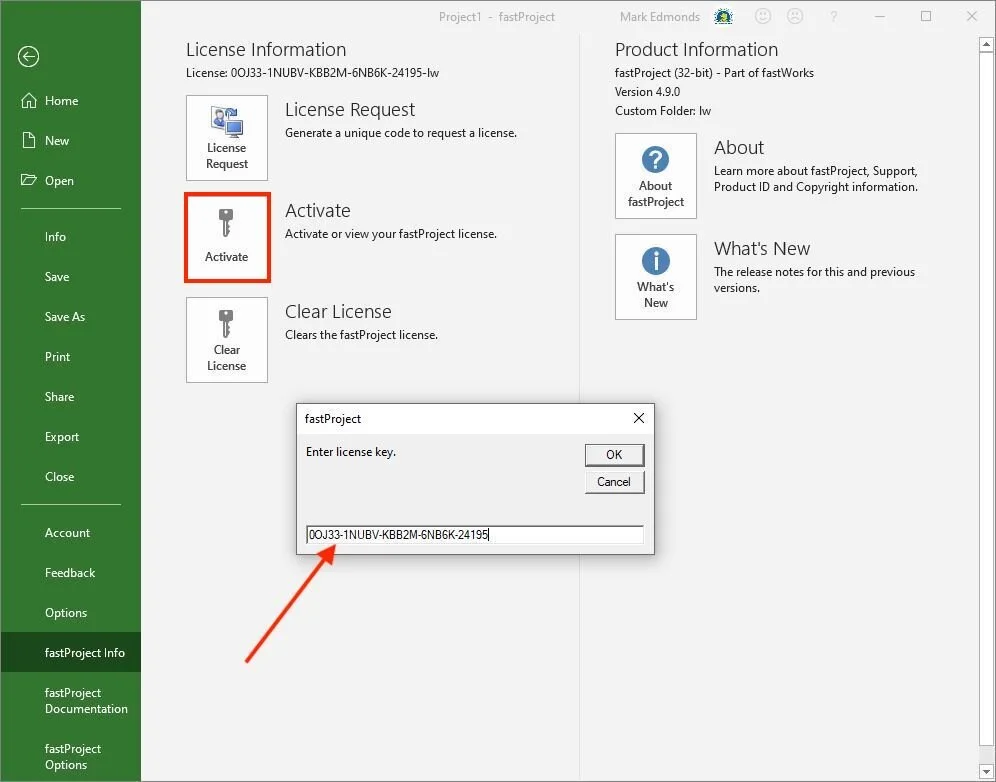
Click File > fastProjectAI Info (see screen below)
Click Activate
Enter (or paste) the license key
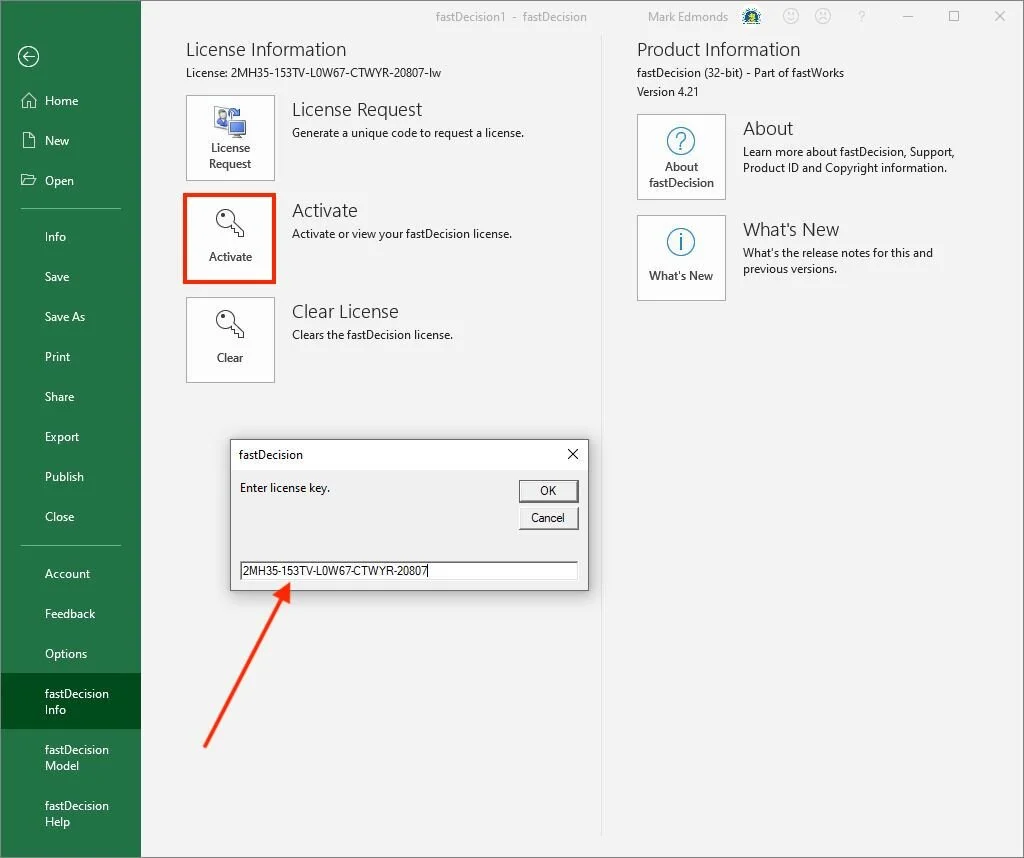
Activate fastDecisionAI
Now open fastDecisionAI
Click File > fastDecisionAI Info (see screen below)
Click Activate
Enter (or paste) the same license key